Is your Android phone feeling sluggish? Does it take forever to open apps, or do you experience frustrating lag while scrolling? You aren't alone. As Android devices age, or as modern apps become more resource-intensive, even high-end smartphones can start to slow down. However, before you consider trading in your device for a new model, there are several "real" fixes you can implement to restore its snappy performance.
In 2026, how to speed up your android phone is a question that involves more than just clearing a few files. It requires a strategic approach to system optimization, managing the latest AI-driven features, and understanding how modern Android versions (like Android 15 and 16) handle resources. This comprehensive guide will walk you through 10 proven, effective methods to breathe new life into your device.
1. Optimize Animation Scales via Developer Options
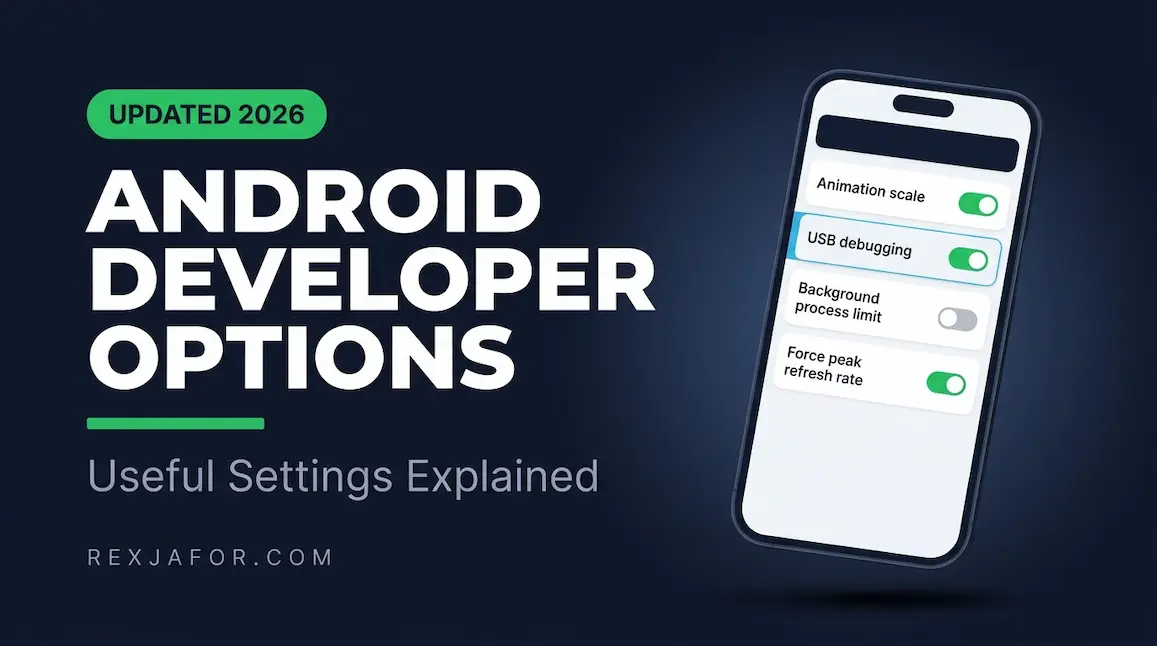
One of the most effective and "instant" ways to make your Android phone feel faster is by adjusting the animation scales. This doesn't technically increase the processing power, but it significantly reduces the time it takes for the UI to transition between screens and apps, making the device feel much more responsive.
How to Enable Developer Options
To access these settings, you first need to unlock the hidden "Developer Options" menu:
- Open Settings.
- Scroll down to About Phone.
- Find the Build Number and tap it seven times. You will see a message saying "You are now a developer!"
- Go back to the main Settings menu, tap on System, and then Developer Options.
Adjusting the Scales
Once inside Developer Options, scroll down to the "Drawing" section and find these three settings:
- Window animation scale
- Transition animation scale
- Animator duration scale
By default, these are set to 1x. Change all three to 0.5x. If you want an even more "instant" feel, you can turn animations off entirely, though this can sometimes make the UI feel a bit jarring. The 0.5x setting is generally considered the "sweet spot" for a fast yet smooth experience.
2. Manage Background Process Limits and "Suspend Execution"
Modern Android versions are excellent at managing memory, but they can still be bogged down by too many apps running in the background. In 2026, Android has introduced more aggressive "Suspend Execution" features that you can toggle to ensure that background apps aren't sipping away at your CPU cycles.
Setting Background Process Limits
Also located in Developer Options, you can find the Background process limit setting.
- Standard Limit: This is the default.
- No background processes: This will kill apps as soon as you leave them. While this saves RAM, it can make switching between apps slower as they have to reload from scratch.
- At most 2 or 3 processes: This is a good middle ground for older devices with limited RAM (4GB or less).
Suspend Execution for Cached Apps
In the latest Android versions, look for the setting "Suspend execution for cached apps". When enabled, this feature completely freezes background apps, preventing them from using any CPU power until you re-open them. This is one of the most significant "real fixes" for battery life and system speed in 2026.
3. The "Lite" App Revolution: Switch to PWA and Lite Versions
If you are using a budget or mid-range device, the full versions of apps like Facebook, Instagram, and TikTok can be massive resource hogs. These apps are designed for flagship devices and can easily consume hundreds of megabytes of RAM and storage.
Why Lite Apps Matter
Lite apps (e.g., Facebook Lite, Messenger Lite, Spotify Lite) are stripped-down versions of their counterparts. They use less data, less storage, and significantly less RAM. For a device that is struggling, switching to these versions can result in a night-and-day difference in performance.
The Rise of Progressive Web Apps (PWAs)
In 2026, many services offer PWAs. Instead of downloading a heavy app from the Play Store, you can "install" the website version directly from your browser (Chrome or Edge). PWAs run within the browser engine, which is often more optimized than a standalone app. They offer almost all the same features—including notifications—but at a fraction of the resource cost.
4. Deep Clean Your Storage: The 10% Rule
Android devices need "breathing room" to function correctly. If your internal storage is nearly full, the system struggles to write temporary files, leading to significant lag. As a general rule of thumb, you should always keep at least 10% to 15% of your storage free.
Identify the Culprits
Use the built-in storage manager to see what is taking up space:
- Go to Settings > Storage.
- Tap on Manage Storage or Free Up Space.
- Look for large files, unused apps, and backed-up photos.
The Power of "Files by Google"
The Files by Google app is a powerful tool for this. It uses AI to identify "junk" files, duplicate photos, and memes that you no longer need. Cleaning out several gigabytes of junk can provide an immediate boost to your system's write speeds.
Offload to the Cloud
Ensure your photos and videos are being backed up to Google Photos or another cloud service. Once backed up, use the "Free up space" feature to delete the local copies from your device.
5. Clear App Cache and System Junk (The Right Way)
Every app on your phone stores temporary data known as "cache." While this is designed to make apps load faster by storing frequently used data locally, a corrupted or overly large cache can have the opposite effect, causing the app—and the whole system—to lag.
Individual App Cache vs. System Cache
In older versions of Android, there was a "Clear All Cache" button. In 2026, you generally have to do this on an app-by-app basis, or use the system's "Device Care" tool.
- Go to Settings > Apps.
- Select a heavy app (like Chrome, YouTube, or Facebook).
- Tap on Storage & Cache.
- Tap Clear Cache. Note: Do not tap "Clear Storage" unless you want to reset the app and log out.
The System Cache Partition
For a deeper clean, you can clear the System Cache Partition. This requires booting into Recovery Mode (usually by holding Power + Volume Down while the phone is off). This clears temporary system files that can accumulate after a major OS update. This is a "pro-level" fix that often resolves mysterious system-wide stutters.
6. Disable Bloatware and Unnecessary System Apps
Many Android phones, especially those from Samsung, Xiaomi, or carrier-branded models, come with "bloatware"—pre-installed apps that you may never use but that still run in the background and consume resources.
Uninstalling vs. Disabling
Some pre-installed apps can be uninstalled normally. However, many are "system apps" that cannot be removed without root access. The solution? Disable them.
- Go to Settings > Apps.
- Find the app you don't use.
- Tap Disable. This prevents the app from running, receiving updates, or showing up in your app drawer.
Using ADB to Remove System Bloat
For advanced users, you can use ADB (Android Debug Bridge) on a computer to remove system apps that don't have a "Disable" button. Tools like "Universal Android Debloater" provide a safe, GUI-based way to do this. Removing heavy carrier apps or redundant system services can free up significant RAM and CPU cycles.
7. Master Your Home Screen: Widgets and Live Wallpapers
We all love a beautiful home screen, but if you are wondering how to speed up your android phone, you might need to sacrifice some aesthetics for performance.
The Cost of Live Wallpapers
Live wallpapers are essentially videos or animations that run constantly in the background. They consume both CPU power and battery. Switching to a high-quality static wallpaper is one of the easiest ways to reduce background load.
Widget Overload
Widgets are mini-apps that stay active to provide real-time information (like weather, news, or stock prices). Each active widget is a background process.
- Audit your widgets: Do you really need that news ticker or the massive clock?
- Limit to one screen: Try to keep all your essential widgets on a single home screen page to prevent the launcher from having to load multiple complex layouts as you swipe.
Try a Lightweight Launcher
If your phone's default UI (like One UI or MIUI) feels heavy, try a lightweight third-party launcher like Nova Launcher or Niagara Launcher. These are often much faster and more customizable than the stock options.
8. Update Your OS and Google Play System Separately
It seems counter-intuitive—doesn't a new update make the phone slower? In 2026, the answer is usually no. Modern updates focus heavily on optimization and security.
Check for System Updates
Go to Settings > System > System Update. Manufacturers often release "Point" updates (e.g., Android 15.1 to 15.2) specifically to fix performance bugs found in the initial release.
The Often-Missed "Google Play System Update"
Many users don't realize that there is a second type of update. Google now updates core system components (like the ART runtime and media codecs) directly through the Play Store.
- Go to Settings > Security & Privacy.
- Tap on System & Updates.
- Check for Google Play system update.
Keeping this updated ensures that the underlying "engine" of Android is running the latest optimizations from Google, regardless of when your phone manufacturer releases an OS update.
9. Manage RAM Expansion (Virtual RAM) Carefully
In 2026, many Android phones come with a feature called RAM Plus or Virtual RAM. This uses a portion of your internal storage as "overflow" RAM when your physical RAM is full.
The Double-Edged Sword of Virtual RAM
While this sounds great, internal storage (even UFS 4.0) is significantly slower than physical RAM. If your phone is constantly swapping data between the RAM and the storage, it can actually cause "micro-stutters."
- If you have 8GB+ of physical RAM: You might actually find that disabling Virtual RAM makes the phone feel snappier, as the system is forced to stay within the faster physical RAM.
- If you have 4GB or less: Keep Virtual RAM enabled, but set it to a moderate level (e.g., 2GB or 4GB). Setting it too high can bog down the storage controller.
Disable "Usage and Diagnostics"
In the background, your phone is constantly sending data to Google and your manufacturer to "improve the service." This telemetry uses a small but constant amount of CPU and data.
- Go to Settings > Google.
- Tap the three dots in the corner and select Usage & diagnostics.
- Turn it Off.
This is a small tweak, but every little bit of background activity you remove helps in the quest for a faster device.
10. The Nuclear Option: Factory Reset and "Fresh Start"
If you have tried all of the above and your phone still feels like it's stuck in molasses, it might be time for a factory reset. Over years of use, system files can become corrupted, and "ghost" files from long-deleted apps can clutter the directory structure in ways that a simple cache clear can't fix.
Why a Factory Reset Works
A factory reset wipes the slate clean. It reformats the storage partitions and reinstalls a fresh copy of the OS. It is the single most effective way to restore a phone to its "out-of-the-box" speed.
How to Do It Right
- Backup Everything: Ensure your photos, contacts, and messages are backed up to the cloud.
- Go to Settings > System > Reset Options > Erase all data (factory reset).
- The "Manual" Setup: When you set the phone back up, do not automatically restore all your apps from a backup. Instead, install them manually one by one. This prevents you from accidentally re-installing the very bloatware or problematic apps that slowed you down in the first place.
Bonus Fix: Check Your Battery Health
In 2026, Android has integrated more advanced battery health monitoring. Just like iPhones, when an Android battery degrades, the system may throttle the CPU to prevent the phone from shutting down unexpectedly under high load.
If your battery health is below 80%, your "slow phone" might actually be a hardware issue. Replacing the battery at an authorized service center can often restore the phone to its full clock speeds, making it feel brand new again.
11. Advanced Browser Optimization: Chrome Flags and Settings
For many users, the primary "app" they use is the web browser. If your browsing experience is slow, the entire phone feels slow. In 2026, Google Chrome (and other Chromium-based browsers like Edge and Brave) includes hidden experimental features called Chrome Flags that can significantly boost performance.
Essential Chrome Flags for Speed
To access these, type chrome://flags into your address bar.
- Parallel Downloading: This allows the browser to establish multiple connections to download a single file, significantly speeding up download times. Search for "Parallel downloading" and set it to Enabled.
- GPU Rasterization: This forces the phone's GPU to handle the rendering of website elements, taking the load off the CPU. Search for "GPU rasterization" and set it to Enabled.
- Back-forward Cache: This keeps recently visited pages "alive" in the memory so they load instantly when you swipe back or forward. Search for "Back-forward cache" and enable it.
Manage Your Tabs and Extensions
Every open tab in Chrome is a separate process that consumes RAM. If you have 50+ tabs open, your browser will inevitably lag.
- Close Inactive Tabs: Use the "Close all tabs" feature once a day to clear the slate.
- Disable Unused Extensions: If you use desktop-style extensions on mobile (via browsers like Kiwi or Yandex), disable any that aren't essential.
12. The PWA vs. Lite App Deep Dive: Which is Better?
We touched on Lite apps earlier, but understanding the technical difference between a Lite app and a Progressive Web App (PWA) is key to optimizing your device's resources.
The Case for Lite Apps
Lite apps are native Android applications (.apk files) that have been optimized for low-end hardware. They often use a different, more efficient coding structure and remove heavy animations and high-resolution assets.
- Best for: Poor network conditions and devices with extremely low RAM (1GB - 2GB).
- Examples: Facebook Lite, Twitter Lite, LinkedIn Lite.
The Power of PWAs
A PWA is essentially a website that behaves like an app. When you "install" a PWA from Chrome, it doesn't download a massive binary file. Instead, it uses the browser's existing engine to render the interface.
- Best for: Saving storage space and reducing background battery drain. Since a PWA doesn't have a constant background service like a native app, it only consumes power when it is open.
- How to Install: Visit a site like Instagram.com or Pinterest.com in Chrome, tap the three dots, and select "Install App" or "Add to Home Screen."
13. Network Optimization: DNS and Connection Stability
Sometimes, what feels like "phone lag" is actually "network lag." If your phone takes a long time to resolve website addresses, every action will feel delayed.
Use a Private DNS
By default, your phone uses the DNS server provided by your ISP or mobile carrier. These are often slow and unreliable. Switching to a fast, private DNS can make web pages load noticeably faster.
- Go to Settings > Network & Internet > Private DNS.
- Select Private DNS provider hostname.
- Enter
dns.google(Google) or1dot1dot1dot1.cloudflare-dns.com(Cloudflare).
This reduces the "lookup time" for every connection your phone makes, resulting in a snappier internet experience.
Wi-Fi Scan Throttling
In Developer Options, ensure that "Wi-Fi scan throttling" is enabled. This prevents the phone from constantly searching for new Wi-Fi networks in the background, which can drain the battery and cause momentary CPU spikes that lead to lag.
14. Managing Google Play Services: The Silent Battery and CPU Hog
Google Play Services is the "glue" that holds Android together. It handles everything from location services and account syncing to ad delivery and security updates. However, it is also one of the most resource-intensive background processes.
Clear Google Play Services Cache
If your phone is running hot and slow for no apparent reason, a corrupted Google Play Services cache is often to blame.
- Go to Settings > Apps > See all apps.
- Find Google Play Services.
- Tap Storage & Cache > Clear Cache.
Warning: Do not "Clear All Data" for Google Play Services unless absolutely necessary, as it will reset your Google account settings and may require you to re-pair your smartwatches or other devices.
Limit Unnecessary Syncing
Your phone is constantly trying to sync your calendar, contacts, drive files, and photos across all your Google accounts.
- Go to Settings > Passwords & Accounts.
- Tap on your Google account.
- Tap Account Sync.
- Turn off syncing for services you don't use (e.g., Google TV, Keep Notes, or Tasks). This reduces the frequency of background wake-ups.
15. The Impact of External Storage: SD Card Performance
If your Android phone has a microSD card slot, it can be a blessing and a curse. While it provides extra space for photos and videos, using a slow SD card can significantly degrade your phone's performance.
The "Bottleneck" Effect
If you move apps to a slow microSD card (Class 10 or lower), the app will take much longer to load and may crash frequently. The read/write speeds of a cheap SD card are a fraction of the speed of your phone's internal storage.
- Solution: Only use high-speed SD cards (UHS-I U3 or V30 ratings).
- Pro Tip: Keep your apps on the Internal Storage and use the SD card exclusively for media like photos, music, and downloaded movies. This ensures the OS and apps run at full speed while still giving you plenty of room for files.
Adoptable Storage vs. Portable Storage
In some versions of Android, you can "format as internal storage." Avoid this unless your phone has extremely low internal storage (16GB or less). It encrypts the card and makes it part of the system, but if the card fails or is removed, the phone may become unusable. Stick to "Portable Storage" for better stability.